
From file to cue
Your first show.
Prepare the audio, choose the outputs and get comfortable with your controls before the live moment.
Start with your audio.
A Show holds your cues and their settings. Start with a Windows PC and an audio output; add a separate Preview output for private listening.
Create or open a Show.
Use the Show menu and begin with a few familiar cues. Opening a Show restores preparation and waits for you to launch.
Import into empty pads.
Choose Import Audio or drag files from Explorer. Review the destinations and wait for the assigned pads to show READY.
Shape each cue.
Select a pad, give it a useful name and colour, and inspect its waveform. Set start/end, level, loop and fades. The original file stays unchanged.
Choose your outputs.
Program can follow the Windows default or a device you select manually. Select a distinct Preview output, run its two-second test and confirm that you hear it separately from Program. Each output uses its device’s stereo channels 1–2.
Listen before you launch.
Use the selected pad’s Preview control, with its own STOP. Start, End and End → Start checks let you audition the cue boundaries or loop join.
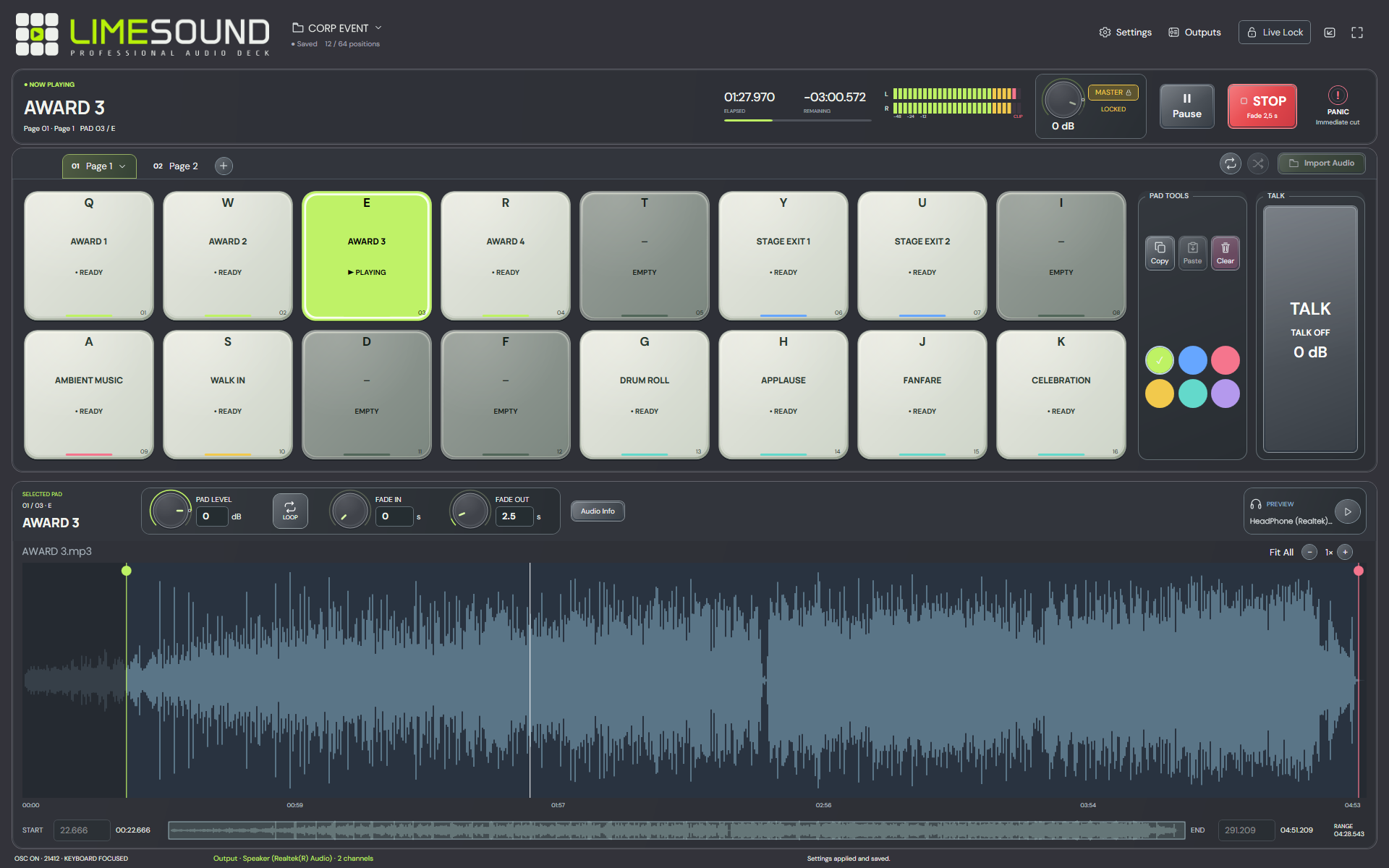
Run from the keyboard.
Keep focus in LimeSound. Selecting a pad and launching a cue have separate actions.
Check your mappings.
Press F1. Default pad keys are Q W E R T Y U I and A S D F G H J K; your configured mappings may differ. Pad keys operate on the visible Page.
Launch a ready cue.
With Program stopped and an available output, press the pad’s key, or use Space for the selected ready pad. A mouse click selects the pad for preparation.
Pause, resume or stop.
Pause keeps the cue’s position; Resume continues it. Press the active pad’s key again or use STOP for fade-out. STOP while paused ends silently; PANIC cuts immediately.
Move to another cue.
Space on another ready selection fades out the current cue, then starts the new one. A different pad key is ignored while Program plays.
Text fields, menus and dialogs keep their normal keyboard controls. Use MIDI or OSC when you need operation without app focus.
Use touchscreen pads.
Operate directly on a touchscreen connected to your Windows PC.
Tap to launch.
With Program stopped and the cue ready, tap its pad to start audio.
Tap again to fade out.
Tap the same active pad to request its configured fade-out. Mouse clicks remain selection actions for preparation.
Use a MIDI controller.
Connect your controller, select its input and match the message it sends.
Select and apply the input.
In Settings → MIDI, choose the device and enable the input. Apply before using Learn.
Learn, review, then map.
Start Learn, press the controller button, review the message type, channel and number, then Add mapping and Apply. Learn captures without launching audio.
Check the received message.
Use Last received to check the channel and number. Use a momentary button for press/release operation; releasing it does not launch a cue.
Test your cue control.
Press to launch a READY cue. Release, then press again for fade-out. Another ready destination can request a sequential transition. Test any pause/resume mapping before use.
Controller lights may not reflect playback. Check the cue’s state in LimeSound. After the audio ends or stops, pressing again launches it again.
Connect an OSC setup.
Operate from an OSC sender on your network, independently of the visible Page.
Configure the input.
In Settings → OSC, review the input port and feedback destination. Each new engine starts with OSC off; choose ON and Apply.
Allow the required network access.
If Windows asks for permission, allow the trusted network used by your OSC sender.
Use the cue’s current address.
Copy its OSC address from the pad menu. Update your sender after reordering Pages, because addresses follow Page and pad position.
Check your control and feedback.
Trigger a ready cue and check the action and result returned to your sender. Test pause/resume controls and listen at the intended output.
Need help connecting? Read the network setup answers.
Before the live moment.
Listen, test your controls and protect your preparation.
Run Preflight.
Review the whole Show and follow any corrective actions for media, preparation, outputs, OSC or saving.
Listen at the real outputs.
Check that Program reaches its destination and Preview stays private. Try Pause/Resume, STOP and PANIC.
Check TALK and any loops.
Toggle TALK to lower Program for speech, then toggle again to restore it. If using Page Loop or Shuffle, arm the Page and launch to begin its sequence.
Use Live Lock.
Lock preparation when ready. Playback, pause, STOP, Page navigation and monitoring stay available.